
How to Turn OBS Recordings into YouTube Shorts Clips
To create YouTube Shorts from OBS recordings, you need to convert your full-quality gameplay or stream footage into short, vertical, captioned clips sized to Shorts specs. Here’s how to do it efficiently and automatically.
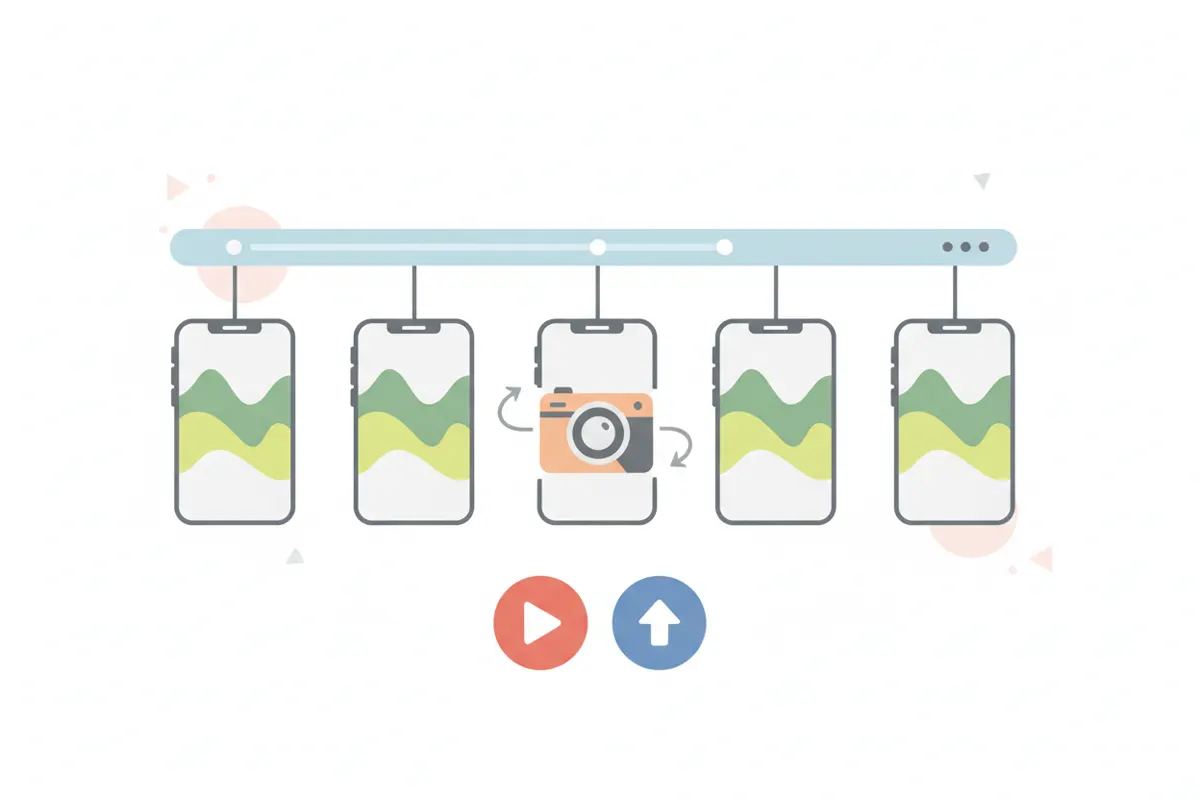
1. Prepare Your OBS Recording
Record your stream, gameplay, or tutorial in OBS using local recording. For best quality, save in MKV or MP4 format. If you recorded in MKV, remux to MP4 before uploading anywhere - MP4 is required for most editing apps and platforms, including YouTube and Vidulk.
- In OBS: File > Remux Recordings to convert MKV to MP4.
- Keep the original full-quality file for best results in later steps.
2. Understand YouTube Shorts Requirements
- Length: Up to 3 minutes (as of August 2026; any video up to 3 minutes uploaded after October 15, 2024, can be a Short).
- Aspect Ratio: Vertical (9:16, e.g., 1080x1920) or square (1:1).
- Wider videos (16:9) are not classified as Shorts.
- Captions: YouTube auto-generates captions if your upload has clear speech in a supported language. You can edit these in YouTube Studio after upload.
3. Clip and Convert Using Vidulk’s AI Clipper
Vidulk’s free AI Clipper app (iOS & Android) streamlines the process:
- Upload your OBS MP4 recording to Vidulk.
- The AI automatically finds the best moments - highlights, funny reactions, key gameplay, or tutorial steps.
- Vidulk exports your clips as vertical (9:16) or square (1:1) videos, sized specifically for YouTube Shorts.
- Automatic captions are added to each clip, improving accessibility and engagement.
4. Export and Upload to YouTube Shorts
- Download the vertical or square clips from Vidulk to your device.
- Upload each clip directly to YouTube from your phone or desktop.
- Ensure the video is under 3 minutes and maintains the vertical or square format for correct Shorts classification.
- Edit auto-generated captions in YouTube Studio if needed.
5. Tips for Best Results
- Keep your OBS recordings high quality for clearer Shorts clips.
- Let Vidulk handle resizing and captioning, but check the final export for any needed tweaks.
- Use descriptive titles and hashtags on YouTube to maximize Shorts reach.
Vidulk's AI clipper (free to start, iOS + Android) finds the best moments in a long video and exports captioned vertical clips sized for the destination.
Try VidulkFAQ
How do I convert an OBS MKV recording to MP4 for YouTube Shorts?
In OBS, use File > Remux Recordings to convert your MKV file to MP4 before uploading or editing.
What aspect ratio do YouTube Shorts require?
YouTube Shorts must be vertical (9:16, 1080x1920) or square (1:1) to be classified as Shorts.
Does Vidulk automatically add captions to my Shorts clips?
Yes, Vidulk's AI Clipper adds auto-captions to your clips for improved accessibility and engagement.
Can I use Vidulk for long OBS recordings?
Yes, Vidulk is designed to process long videos and automatically find the best short moments for Shorts.
Is it free to use Vidulk’s AI Clipper for YouTube Shorts?
Vidulk is free to start, with no cost to try the AI clipper app on iOS and Android.