
How to Turn OBS Recordings into LinkedIn Clips (Fast & Easy)
To create LinkedIn-ready short clips from OBS recordings, remux your video to MP4, then use Vidulk's AI Clipper app to generate vertical, captioned clips sized for LinkedIn.
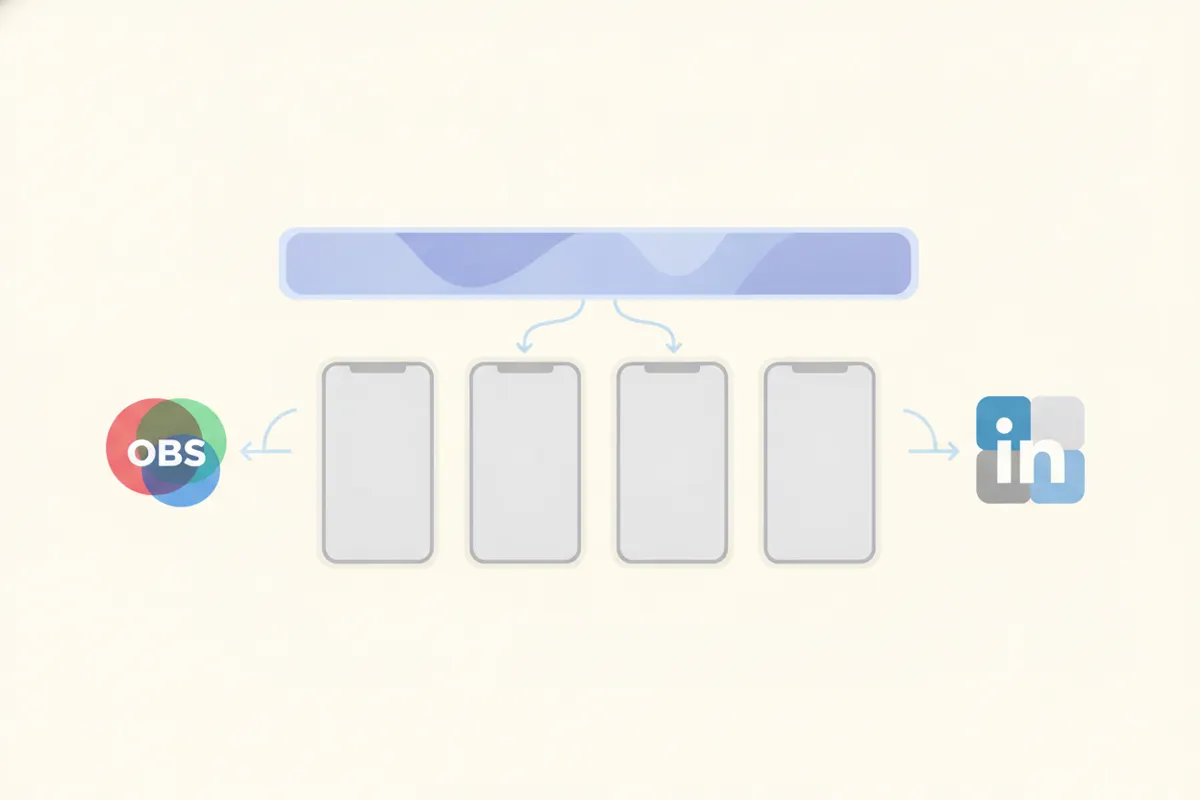
1. Prepare Your OBS Recording for LinkedIn
OBS (Open Broadcaster Software) recordings are often saved as MKV or MP4 files. LinkedIn supports MP4 uploads, so if your OBS file is MKV, remux it to MP4 using OBS's "Remux Recordings" feature for maximum compatibility and full quality.
- Go to OBS File > Remux Recordings
- Select your MKV file and convert to MP4
- Ensure the video is high quality and uncompressed by platforms
2. LinkedIn Video Specs You Need to Know
- Max length: 15 minutes per LinkedIn's current support article
- Accepted aspect ratios: Any from 1:2.4 to 2.4:1 (vertical 9:16, 4:5, square, landscape all work)
- Recommended for vertical: 1080x1920 (9:16) or 1080x1350 (4:5)
- Resolution range: 256x144 up to 4096x2304
- Captions: LinkedIn auto-generates captions post-upload; you can toggle them on during upload, but they may take time to appear
3. Clip and Reformat with Vidulk’s AI Clipper
Vidulk’s free AI Clipper app (iOS & Android) streamlines the process:
- Upload your MP4 OBS recording to the app
- Vidulk automatically finds the best moments in your long video
- Exports short, vertical clips (9:16 or 4:5), sized for LinkedIn and other platforms
- Includes burned-in captions for accessibility and engagement
This automation saves you from manual editing, cropping, and captioning.
4. Uploading Your Clips to LinkedIn
- Transfer the finished clips from Vidulk to your computer or use your phone
- On LinkedIn, click "Start a post" and then the video icon to upload
- Choose your vertical clip (MP4)
- Toggle on auto-captions during upload for additional accessibility (optional)
- Publish your post; captions may take a few minutes to appear
Your OBS recording is now a LinkedIn-optimized, captioned short clip - ready to drive engagement.
Vidulk's AI clipper (free to start, iOS + Android) finds the best moments in a long video and exports captioned vertical clips sized for the destination.
Try VidulkFAQ
How do I convert an OBS MKV recording to MP4 for LinkedIn?
In OBS, use File > Remux Recordings to convert MKV files to MP4. This ensures full compatibility with LinkedIn uploads.
What aspect ratio should LinkedIn clips be?
LinkedIn accepts any ratio from 1:2.4 to 2.4:1. For vertical clips, use 9:16 (1080x1920) or 4:5 (1080x1350) for best results.
Does LinkedIn add captions to uploaded videos?
Yes, LinkedIn can auto-generate captions. Enable this during upload, but note captions may take time to appear after posting.
How does Vidulk automate creating LinkedIn-ready clips?
Vidulk’s AI Clipper finds key moments in your OBS video and exports short, vertical, captioned clips sized for LinkedIn’s requirements.
Can I use Vidulk’s AI Clipper for free?
Vidulk’s AI Clipper is free to start on iOS and Android, allowing you to generate and export clips without upfront cost.