
How to Turn OBS Recordings into X (Twitter) Clips
To convert an OBS recording into short, vertical, captioned clips sized for X (Twitter), use Vidulk’s AI Clipper and follow X’s video specs for best results.
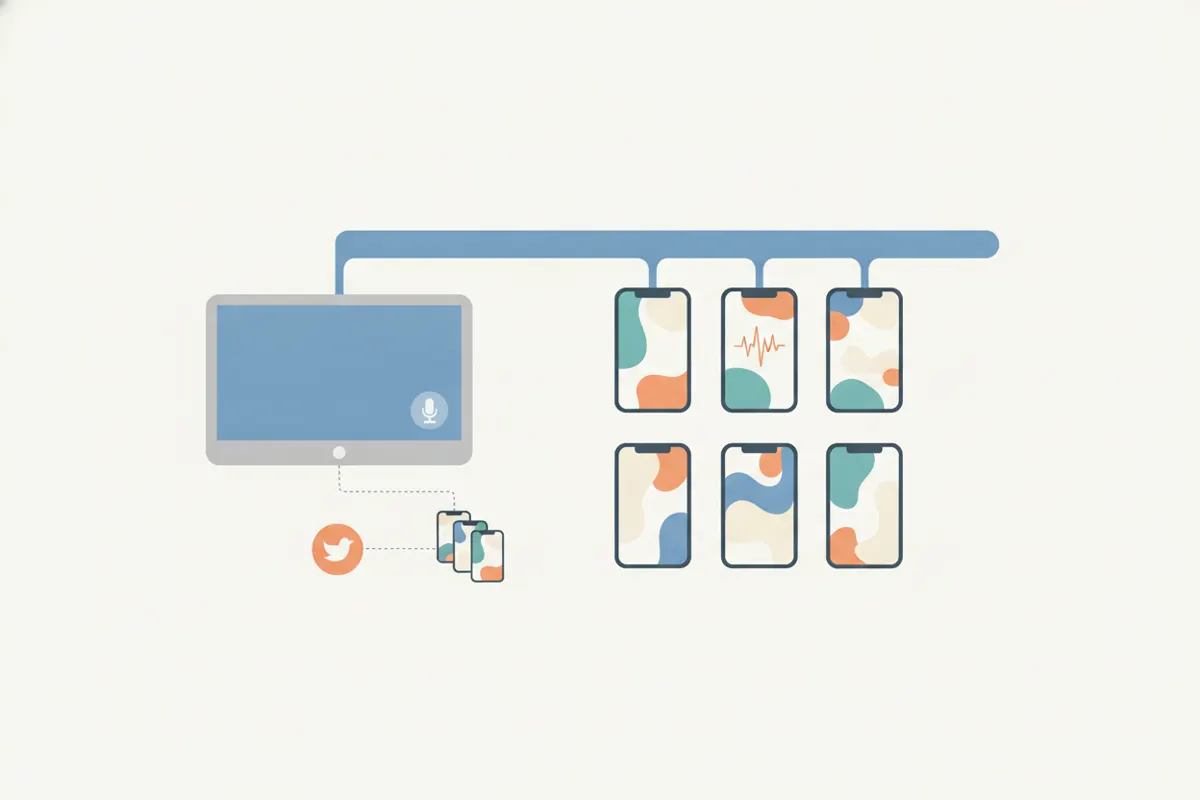
1. Prepare Your OBS Recording
Record your stream, gameplay, or tutorial in OBS using the highest quality settings. OBS saves by default in MKV for safety. Before uploading anywhere, remux your MKV file to MP4 (File > Remux Recordings in OBS). This ensures compatibility with most video editing tools and apps, including Vidulk.
2. Know X (Twitter) Video Specs
- Length: Non-Premium users can upload videos up to 2:20 (140 seconds). Premium users can upload up to 2 hours at 1080p, or 4 hours at 720p.
- Aspect Ratio: Landscape (16:9), Portrait (9:16), or Square (1:1) are all supported. Recommended for vertical clips: 9:16 (portrait).
- Resolution: 720x1280 (portrait), 1280x720 (landscape), or 720x720 (square) are optimal.
- Captions: You can attach SRT subtitle files to videos on X via the web.
3. Clip and Format with Vidulk's AI Clipper
- Open the Vidulk app on iOS or Android.
- Upload your MP4 OBS recording. The AI Clipper scans your video and automatically finds the most engaging moments.
- Select the best vertical (9:16) clips for X. Vidulk exports them in the right size and adds captions directly onto the video.
- Review and save your clips for upload.
4. Upload and Caption on X (Twitter)
- Log in to X (Twitter) on the web or mobile app.
- Upload your vertical clip. For accessibility, you can attach an SRT subtitle file if you wish, or rely on the burned-in captions from Vidulk.
- Double-check that your video meets X’s specs for aspect ratio and length before posting.
5. Automate the Process with Vidulk
Vidulk streamlines the workflow by auto-selecting highlights and exporting them in vertical format with captions, ready for X. This saves time versus manual editing and ensures your clips are optimized for X’s feed and audience.
Vidulk's AI clipper (free to start, iOS + Android) finds the best moments in a long video and exports captioned vertical clips sized for the destination.
Try VidulkFAQ
How do I convert an OBS MKV recording to MP4?
In OBS, go to File > Remux Recordings, select your MKV file, and convert it to MP4 for better compatibility with editing apps and social media.
What is the best aspect ratio for X (Twitter) clips?
For vertical clips, use 9:16 (portrait). X also supports 16:9 (landscape) and 1:1 (square), but vertical works best for mobile feeds.
Does Vidulk add captions to my X (Twitter) clips?
Yes, Vidulk’s AI Clipper burns captions directly onto your vertical clips, making them more engaging and accessible.
What is the maximum video length for non-premium X users?
Non-Premium X (Twitter) users can upload videos up to 2 minutes and 20 seconds (140 seconds) in length.
Can I upload SRT subtitles to X (Twitter) videos?
Yes, you can attach SRT subtitle files when uploading videos to X (Twitter) via the web for added accessibility.