
How to Turn OBS Recordings Into Snapchat Spotlight Clips
To create Snapchat Spotlight clips from OBS recordings, you need to trim, resize, and caption your video into a vertical 9:16 format. Vidulk's AI Clipper can automate this process for you.
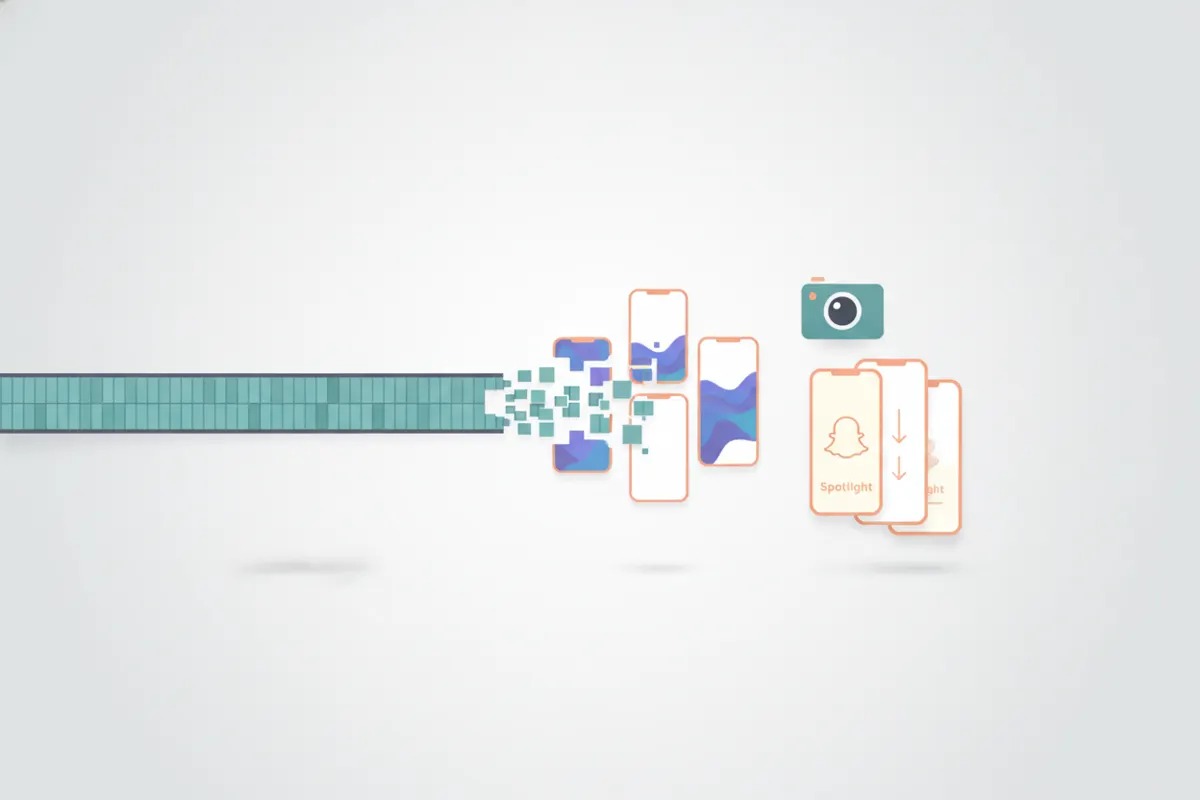
Step 1: Export Your OBS Recording Correctly
After recording your content in OBS, make sure your file is in MP4 format. If OBS saved your video as MKV, use OBS's "Remux Recordings" feature (File > Remux Recordings) to convert it to MP4, which is required for most editing and uploading tools.
Step 2: Understand Snapchat Spotlight Specs
- Aspect Ratio: 9:16 vertical video is required for Spotlight.
- Max Length: Up to 5 minutes per clip (as of August 2026).
- Resolution: 1080x1920 is recommended for vertical video, though Snapchat does not publish exact organic specs.
- Captions: Snapchat Spotlight does not support SRT uploads or auto-captioning; captions must be burned into the video itself.
Step 3: Use Vidulk to Automate Vertical Clipping
Vidulk is a free app (iOS and Android) with an AI Clipper designed for creators. Paste or upload your full OBS recording, and the AI will automatically:
- Detect and extract the best moments suitable for short clips
- Reformat the video to vertical (9:16) size for Snapchat Spotlight
- Add captions directly onto your clips, meeting Snapchat's requirements
- Export clips as MP4, ready for upload
This saves time compared to manual editing tools, especially when working with long streams, gameplay, or tutorials.
Step 4: Upload to Snapchat Spotlight
- Transfer the exported vertical MP4 clips to your phone if needed.
- Open Snapchat, tap the Spotlight icon, and upload your video.
- Use Snapchat's Creative Tools to add stickers, music, or additional in-app captions if desired.
Double-check your clip's orientation and captions before publishing.
Vidulk's AI clipper (free to start, iOS + Android) finds the best moments in a long video and exports captioned vertical clips sized for the destination.
Try VidulkFAQ
How do I convert an OBS MKV file to MP4 for Snapchat?
Open OBS, go to File > Remux Recordings, select your MKV file, and convert it to MP4. This format is compatible with editing tools and Snapchat uploads.
What are the required specs for Snapchat Spotlight videos?
Snapchat Spotlight requires vertical (9:16) videos, up to 5 minutes long. 1080x1920 resolution is recommended. Captions must be burned in, as SRT uploads are not supported.
Can Vidulk automatically create vertical, captioned clips from my OBS recording?
Yes. Vidulk's AI Clipper finds the best moments, reformats them to vertical, adds captions, and exports MP4 clips ready for Snapchat Spotlight.
Does Snapchat Spotlight support auto-captioning or SRT files?
No. Snapchat Spotlight does not support SRT uploads or auto-captioning. Captions must be included directly in the video using editing tools or in-app features.
Is Vidulk free to use for clipping OBS recordings?
Vidulk is free to start, with the AI Clipper available on iOS and Android. Some advanced features may require in-app purchases.