
How to Turn Zoom Recordings into LinkedIn Clips
To create LinkedIn-ready vertical clips from a Zoom recording, use Vidulk’s AI clipper to find the best moments, crop to vertical, and export with captions - all sized to LinkedIn’s specs.
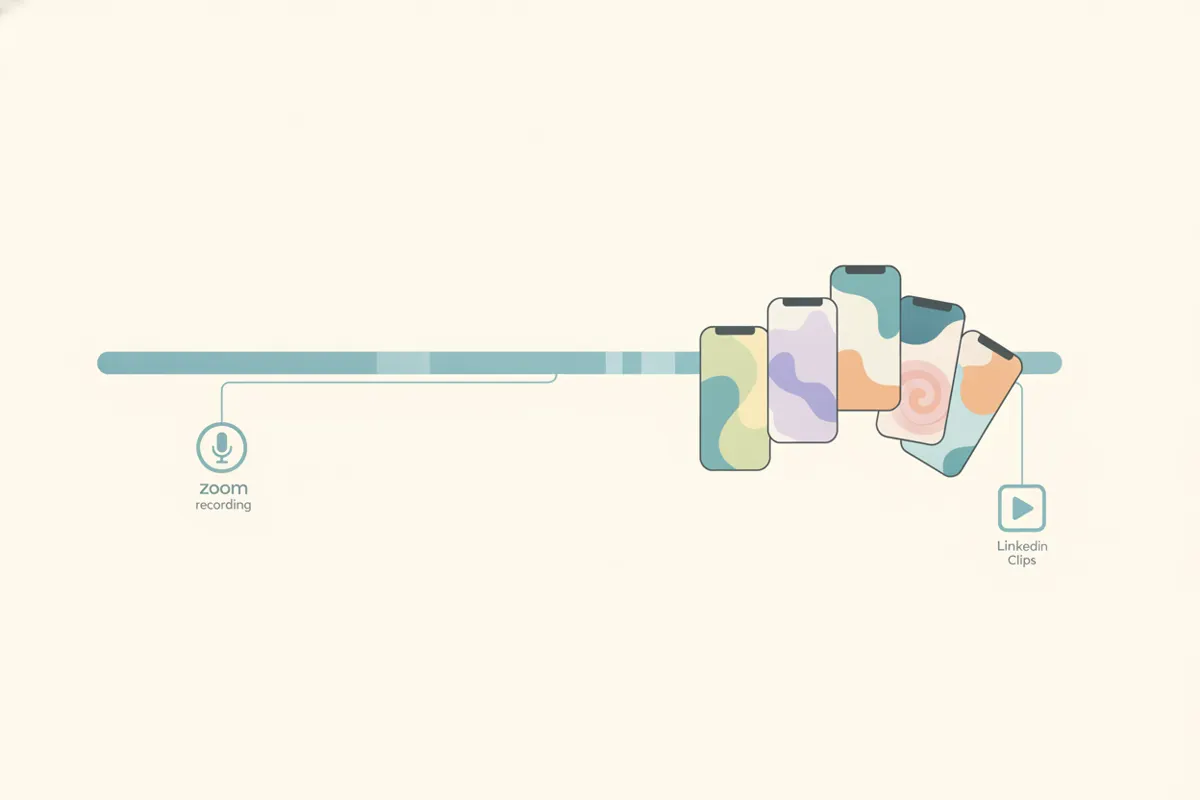
Step 1: Prepare Your Zoom Recording
Export your Zoom meeting, webinar, or interview as a video file. Use either cloud or local recording. Speaker view (16:9) is recommended, as it keeps the focus on the active speaker. Before sharing, ensure you have consent from all participants to use the video for social media.
Step 2: Upload to Vidulk's AI Clipper
- Download the Vidulk app for iOS or Android.
- Open the app and upload your Zoom video file.
- The AI will automatically analyze the recording and select the most engaging moments suitable for short clips.
Step 3: Convert to Vertical, Captioned Clips for LinkedIn
- Choose the vertical (9:16) or square (1:1) format - both accepted by LinkedIn.
- Vidulk crops to the active speaker, optimizing for vertical format.
- Set your desired clip length (LinkedIn allows up to 15 minutes, but short clips often perform best).
- Vidulk generates auto-captions burned into the video, ensuring accessibility even before LinkedIn’s own auto-captioning is applied.
Step 4: Export and Upload to LinkedIn
- Export your finished clip in 1080x1920 (vertical) or 1080x1080 (square) resolution - both within LinkedIn’s accepted range.
- Transfer the exported MP4 to your computer or mobile device.
- Upload to LinkedIn. During upload, you can also toggle LinkedIn’s auto-captions for additional accessibility.
Tips for Best Results
- Keep clips concise and focused on a single idea or answer.
- Review captions for accuracy before posting.
- Always respect privacy and secure permissions from all speakers.
Vidulk's AI clipper (free to start, iOS + Android) finds the best moments in a long video and exports captioned vertical clips sized for the destination.
Try VidulkFAQ
How do I crop a Zoom recording to vertical for LinkedIn?
Use Vidulk’s AI clipper to crop the active speaker from a 16:9 Zoom video into a vertical (9:16) or square (1:1) format accepted by LinkedIn.
What is the maximum video length for LinkedIn clips?
LinkedIn accepts videos up to 15 minutes in length, regardless of upload method, as of August 2026.
Can I add captions to my LinkedIn video clips?
Yes. Vidulk can burn captions into your clips, and LinkedIn also offers auto-captioning during upload.
Do I need participant consent to share Zoom recordings?
Yes. Always obtain consent from everyone visible or audible in the recording before posting clips to LinkedIn.
Which video resolutions and aspect ratios does LinkedIn support?
LinkedIn accepts resolutions from 256x144 up to 4096x2304 and aspect ratios from 1:2.4 to 2.4:1, including vertical (9:16), square (1:1), and landscape.