
How to Turn Zoom Recordings Into Facebook Reels Clips
To share a Zoom recording as Facebook Reels clips, crop to vertical, trim to key moments, and add captions. Vidulk’s AI Clipper automates these steps for fast, platform-ready results.
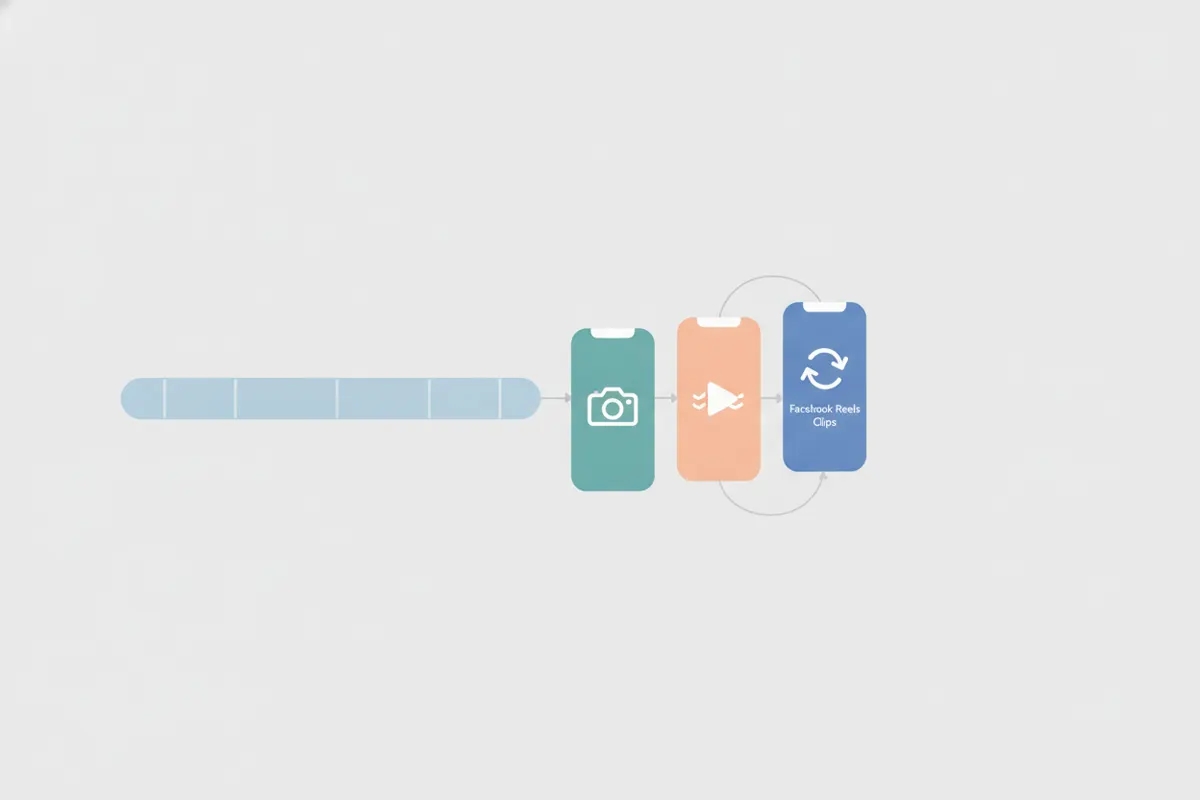
1. Understand the Source and Destination Requirements
- Source: Zoom recordings export in 16:9 landscape, typically with the active speaker centered in speaker view. Always get consent from meeting participants before sharing clips publicly.
- Destination: Facebook Reels (as of August 2026) recommends 9:16 vertical (1440x2560 px or 1080x1920 px). Any video posts as a Reel, but vertical fills the screen. Captions are optional but recommended since auto-captioning is not supported for Reels ads.
2. Manual Workflow: Steps to Create Facebook Reels Clips from Zoom
- Export your Zoom recording (cloud or local) in MP4 format.
- Open the file in a video editor (such as CapCut, Premiere Rush, or iMovie).
- Cropping: Set the aspect ratio to 9:16 and crop to focus on the active speaker.
- Trimming: Cut the video down to short, engaging moments (under 90 seconds is typical, but longer is allowed).
- Captions: Add readable captions, as Facebook does not auto-generate captions for Reels ads.
- Export at 1080x1920 px or 1440x2560 px, MP4 format.
- Upload to Facebook via the Reels upload interface.
3. Automate with Vidulk’s AI Clipper
- Download the free Vidulk app for iOS or Android.
- Paste your Zoom recording link or upload the MP4 file.
- Vidulk’s AI scans your video, selects the best moments, and automatically crops to 9:16 vertical, focusing on the speaker.
- AI adds accurate, readable captions to each clip, matching Facebook Reels’ format requirements.
- Export the finished clips, ready for direct upload to Facebook Reels.
4. Best Practices for Facebook Reels from Zoom Recordings
- Keep clips concise and engaging - focus on highlights, insights, or memorable quotes.
- Ensure captions are large and high-contrast for mobile viewing.
- Check audio quality and background distractions before sharing.
- Review each clip for privacy and consent compliance.
Vidulk's AI clipper (free to start, iOS + Android) finds the best moments in a long video and exports captioned vertical clips sized for the destination.
Try VidulkFAQ
How do I crop a Zoom recording to vertical for Facebook Reels?
Use a video editor or Vidulk’s AI Clipper to crop your 16:9 Zoom video to a 9:16 vertical aspect ratio, focusing on the active speaker.
What size and format should Facebook Reels clips be?
Facebook Reels recommends 9:16 aspect ratio, 1440x2560 or 1080x1920 resolution, MP4 format. Any video posts as a Reel, but vertical fills the screen.
Does Facebook Reels auto-generate captions?
No, Facebook Reels ads do not support auto-captioning. You need to add captions manually or use an app like Vidulk to generate them.
Can I use Vidulk for Zoom webinar, meeting, or interview recordings?
Yes, Vidulk’s AI Clipper works with any long-form Zoom recording, automatically creating short, vertical, captioned clips for Reels.
Is it necessary to get consent before posting Zoom clips?
Yes, always get consent from all participants featured in your Zoom recording before sharing any clips publicly on Facebook Reels.