
How to Turn a Twitch Stream or VOD into Snapchat Spotlight Clips
To turn a Twitch stream or VOD into Snapchat Spotlight clips, you’ll need to download your video, reframe it to vertical (9:16), add captions, and export in a Spotlight-ready format. Vidulk’s AI clipper automates this process for fast, shareable results.
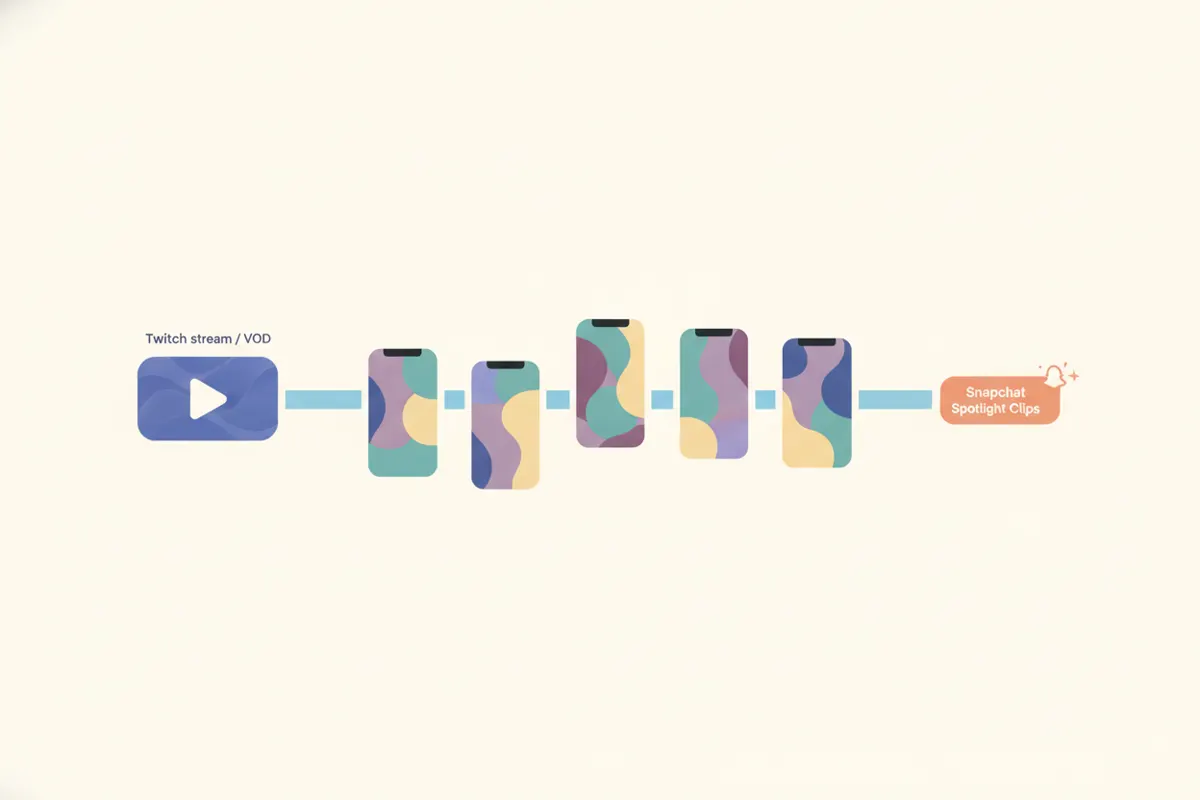
1. Download Your Twitch VOD or Stream Recording
Start by accessing your Twitch VOD or stream recording. If you stream on Twitch, enable VOD saving in your Creator Dashboard. Alternatively, record your stream locally using OBS for the highest quality. Download the video file to your device for editing.
2. Understand Snapchat Spotlight Video Specs
- Aspect Ratio: 9:16 vertical is required for Spotlight.
- Max Length: Up to 5 minutes per video (as of August 2026).
- Resolution: Snap does not publish organic Spotlight specs, but 1080x1920 is widely used.
- Captions: No SRT upload or auto-captioning for Spotlight. Add captions directly to the video before uploading.
3. Reframe and Edit for Vertical Viewing
Twitch content is broadcast in 16:9 horizontal, but Snapchat Spotlight requires 9:16. Use editing software or an automation tool to crop and reframe your video. Popular approaches include splitting the vertical frame between your face-cam and gameplay. Ensure the main action and reactions are visible in the vertical crop.
4. Automate the Process with Vidulk’s AI Clipper
Vidulk’s free-to-start AI clipper (iOS and Android) streamlines the workflow. Paste your Twitch VOD or upload the video, and the AI finds the best moments, reframes to vertical, and adds captions. You can export short vertical clips sized for Snapchat Spotlight, ready to upload. This saves manual editing time and ensures your content matches platform requirements.
5. Upload to Snapchat Spotlight
- Transfer the exported vertical clip to your phone if needed.
- Open Snapchat and tap the Spotlight tab (+ Spotlight icon).
- Select your video, add in-app captions or stickers if desired, and submit to Spotlight.
Vidulk's AI clipper (free to start, iOS + Android) finds the best moments in a long video and exports captioned vertical clips sized for the destination.
Try VidulkFAQ
How do I download my Twitch VOD for editing?
Enable VOD saving in your Twitch settings, then access and download from the Video Producer page. Local recordings via OBS are also an option.
What’s the required aspect ratio for Snapchat Spotlight videos?
Snapchat Spotlight requires vertical 9:16 videos. Horizontal (16:9) videos will not display correctly.
Does Snapchat Spotlight support auto-captions or SRT files?
No. Snapchat Spotlight does not allow SRT uploads or auto-captioning. Add captions directly to your video before uploading.
How does Vidulk automate Twitch to Snapchat clip creation?
Vidulk’s AI clipper finds the best moments in your Twitch VOD, reframes them to vertical, adds captions, and exports Spotlight-ready clips.
Can I use Vidulk for free?
Vidulk is free to start on iOS and Android. Some features or exports may require payment or a watermark removal code.