
How to Turn OBS Recordings Into TikTok Clips (Vertical, Captioned, Ready to Post)
To turn your OBS recording into TikTok-ready vertical clips with captions, use Vidulk’s AI clipper to automate the process - no manual editing required.
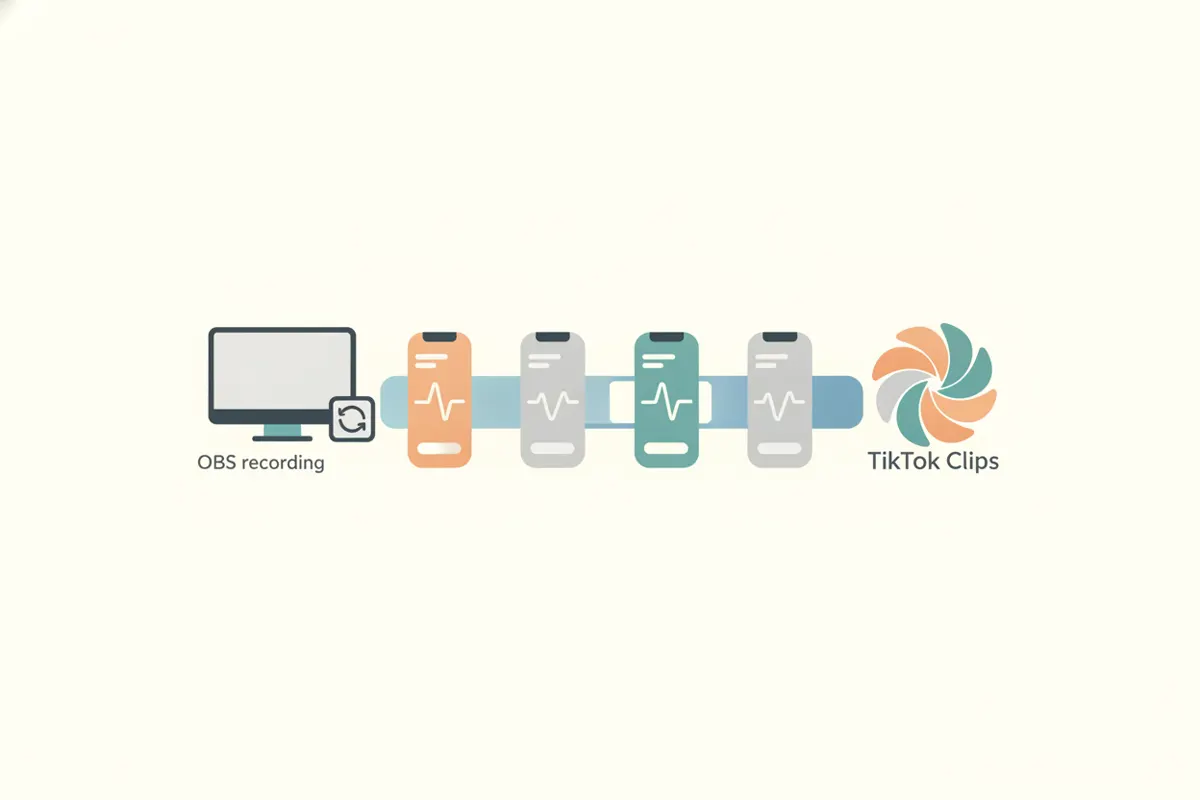
Step 1: Prepare Your OBS Recording for Upload
Record your stream, gameplay, or tutorial in OBS and save the file locally. OBS often saves in MKV format for reliability, but TikTok and many editors - including Vidulk - prefer MP4. If your recording is MKV, use OBS’s built-in Remux feature (File > Remux Recordings) to convert it to MP4 without quality loss. This ensures compatibility and smooth uploads.
Step 2: Understand TikTok’s Clip Requirements
- Aspect Ratio: 9:16 vertical is recommended for maximum engagement.
- Resolution: 1080x1920 pixels is standard for TikTok vertical videos.
- Length: TikTok supports up to 60 minutes per upload (feature availability may vary by account).
- Captions: TikTok offers auto captions, but adding accurate, on-brand captions before upload improves accessibility and engagement.
Step 3: Use Vidulk to Automate Clipping and Captioning
- Download Vidulk on iOS or Android.
- Upload your MP4 OBS recording to Vidulk’s AI Clipper.
- Vidulk analyzes the video, finds the best moments, and automatically generates short vertical clips sized for TikTok.
- Clips are exported in 9:16 aspect ratio at 1080x1920 pixels, ready for upload.
- Each clip includes clear, accurate captions generated by AI.
Step 4: Export and Upload to TikTok
After Vidulk processes your video, export the finished clips to your device. Open TikTok, create a new post, and upload the vertical clip(s). You can further adjust auto captions in TikTok’s editor if needed, but Vidulk’s captions are ready to go.
Tips for Best Results
- Record in the highest quality your system allows for sharp, clear clips.
- Trim excess footage in Vidulk before exporting, if desired.
- Preview captions for accuracy and brand tone.
- Post during your audience’s active hours for maximum reach.
Vidulk's AI clipper (free to start, iOS + Android) finds the best moments in a long video and exports captioned vertical clips sized for the destination.
Try VidulkFAQ
How do I convert my OBS MKV recording to MP4?
In OBS, go to File > Remux Recordings. Select your MKV file to convert it to MP4 without losing quality.
What is the best aspect ratio for TikTok clips?
9:16 vertical is recommended for TikTok. Vidulk exports clips in this format automatically.
Does Vidulk add captions to my TikTok clips?
Yes, Vidulk’s AI Clipper generates accurate captions on each vertical clip, ready for TikTok upload.
What is the maximum video length for TikTok uploads?
TikTok supports up to 60 minutes per upload, but availability may vary by account as the feature rolls out.
Can I edit the clips before uploading to TikTok?
Yes, you can review and trim clips in Vidulk before exporting, and further edit in TikTok’s post editor if needed.