
How to Turn Facebook Live Recordings Into TikTok Clips
To create TikTok-ready clips from a Facebook Live, download your recording, reformat it to 9:16 vertical, and use Vidulk’s AI clipper to automate finding and captioning the best moments.
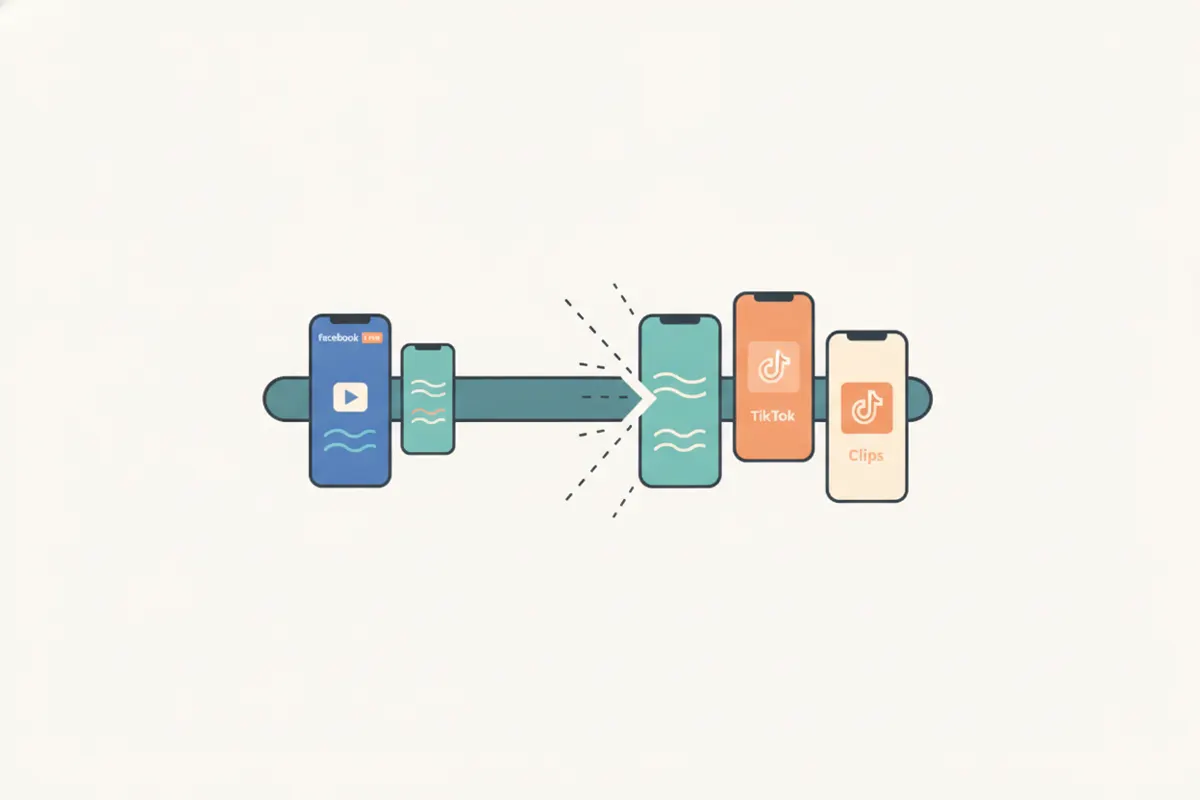
Step 1: Download Your Facebook Live Recording
First, access Meta Business Suite or Creator Studio to download your Facebook Live video. The file will usually be in 16:9 horizontal or sometimes 9:16 vertical, depending on how you streamed. Save the highest quality version for best results.
Step 2: Understand TikTok’s Clip Requirements
- Aspect Ratio: 9:16 vertical is recommended for TikTok, though 1:1 and 16:9 are accepted.
- Resolution: Standard is 1080x1920 (vertical). TikTok supports uploads from 360 to 4096 pixels per side.
- Length: TikTok now supports uploads up to 60 minutes, but short, engaging clips (15 - 120 seconds) perform best.
- Captions: TikTok offers auto captions, but adding clear, accurate captions before upload can boost accessibility and engagement.
Step 3: Use Vidulk to Automate Clipping and Formatting
Vidulk’s free AI clipper (iOS and Android) streamlines the process:
- Upload your Facebook Live video in the app.
- Vidulk’s AI scans your video for the most engaging moments (such as reactions, highlights, or key quotes).
- It automatically reframes the content to 9:16 vertical, ready for TikTok.
- The app adds clear, on-video captions to each clip, matching TikTok’s visual style.
- Export your clips in TikTok-ready format and upload directly to your TikTok account.
Tips for Best Results
- Review the AI-chosen clips and adjust the start/end points or captions if needed.
- For horizontal videos, check that faces and key action stay centered after reframing to vertical.
- Use multiple short clips instead of one long video for better TikTok engagement.
- Check exported video resolution matches TikTok’s 1080x1920 standard for optimal quality.
Vidulk's AI clipper (free to start, iOS + Android) finds the best moments in a long video and exports captioned vertical clips sized for the destination.
Try VidulkFAQ
How do I download my Facebook Live video for editing?
Go to Meta Business Suite or Creator Studio, find your Live video, and select the download option for the highest available quality.
What TikTok aspect ratio and resolution should I use?
TikTok’s recommended aspect ratio is 9:16 vertical, with a standard resolution of 1080x1920 pixels for best results.
Does Vidulk automatically caption my TikTok clips?
Yes, Vidulk’s AI clipper adds clear, on-video captions to your clips, matching TikTok’s style and improving accessibility.
Can I edit the clips Vidulk creates before uploading to TikTok?
You can review, trim, and adjust captions on your clips in Vidulk before exporting them for TikTok.
Is Vidulk’s AI clipper available for both iOS and Android?
Yes, Vidulk’s AI clipper app is available for free download on both iOS and Android devices.