
How to Turn Facebook Live Recordings Into Instagram Reels Clips
To convert a Facebook Live recording into Instagram Reels clips, download your video, reformat it to 9:16 vertical, add captions, and export within Reels specs. Vidulk's AI clipper automates this process.
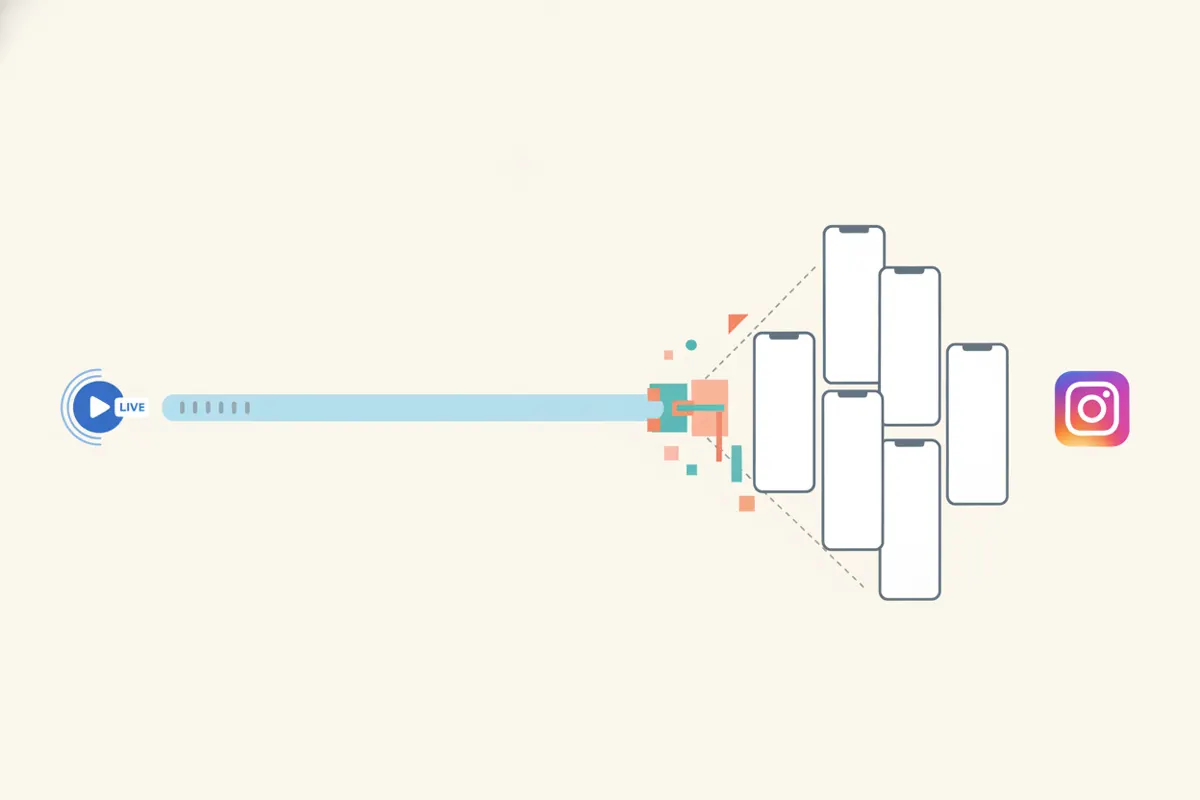
Step 1: Download Your Facebook Live Recording
After your Facebook Live session ends, download the video from Creator Studio or Meta Business Suite. The file will typically be in a 16:9 (horizontal) or sometimes 9:16 (vertical) aspect ratio. Make sure you have the highest quality version available for editing.
Step 2: Understand Instagram Reels Requirements
- Aspect Ratio: 9:16 vertical (1080x1920 pixels recommended; Meta also accepts 1440x2560 for ads)
- Max Length: Up to 20 minutes (as of August 2026, using the Reels camera); shorter clips are more engaging
- Captions: Instagram can auto-generate captions in-app, but pre-burned captions are recommended for accessibility and engagement
Step 3: Clip, Reframe, and Caption Your Video
You can manually edit your Facebook Live recording using a video editor:
- Cut out the best moments (aim for 15-90 seconds per clip for most engagement)
- Reframe to 9:16 vertical. Crop or zoom in to focus on the main subject
- Add captions, either manually or using a tool that supports burned-in subtitles
This process is time-consuming and requires some editing skills.
Step 4: Automate With Vidulk's AI Clipper
Vidulk (iOS & Android) streamlines this workflow. Paste your Facebook Live video into the app. Vidulk's AI automatically:
- Finds the most engaging moments in your long video
- Converts clips to vertical 9:16, centered on faces or action
- Adds burned-in captions for accessibility
- Exports clips sized for Instagram Reels (and other platforms)
This saves hours of manual work and ensures your content fits Instagram's specs.
Step 5: Upload to Instagram Reels
Transfer your exported clips to your phone if needed. Open Instagram, select the Reels tab, and upload your videos. You can add stickers, music, or use Instagram's caption sticker for extra accessibility. Double-check that your video displays correctly in 9:16 format and that captions are legible.
Vidulk's AI clipper (free to start, iOS + Android) finds the best moments in a long video and exports captioned vertical clips sized for the destination.
Try VidulkFAQ
How do I download my Facebook Live video for editing?
Go to Creator Studio or Meta Business Suite, find your video, and select Download. This gives you the highest quality file for editing.
What is the best aspect ratio and resolution for Instagram Reels?
Instagram Reels recommends a 9:16 aspect ratio (vertical), with 1080x1920 pixels as standard. Higher resolutions like 1440x2560 are also accepted.
Can I add captions before uploading to Instagram Reels?
Yes. You can add captions manually or use Vidulk's AI clipper to generate burned-in captions before uploading. Instagram also offers auto-captions in-app.
How does Vidulk automate Facebook Live to Reels conversion?
Vidulk's AI finds key moments, reframes to vertical, adds captions, and exports clips sized for Instagram Reels automatically from your Facebook Live recording.
Are there any limits on Instagram Reels clip length?
As of August 2026, you can upload Reels up to 20 minutes long using the Reels camera, but shorter clips (15-90 seconds) tend to perform best.