
How to Turn Discord Calls or Streams Into LinkedIn Clips
To share highlights from a Discord call or stream as LinkedIn-ready vertical clips, you’ll need to record, trim, and format your video to fit LinkedIn’s specs. Here’s how to do it efficiently using Vidulk.
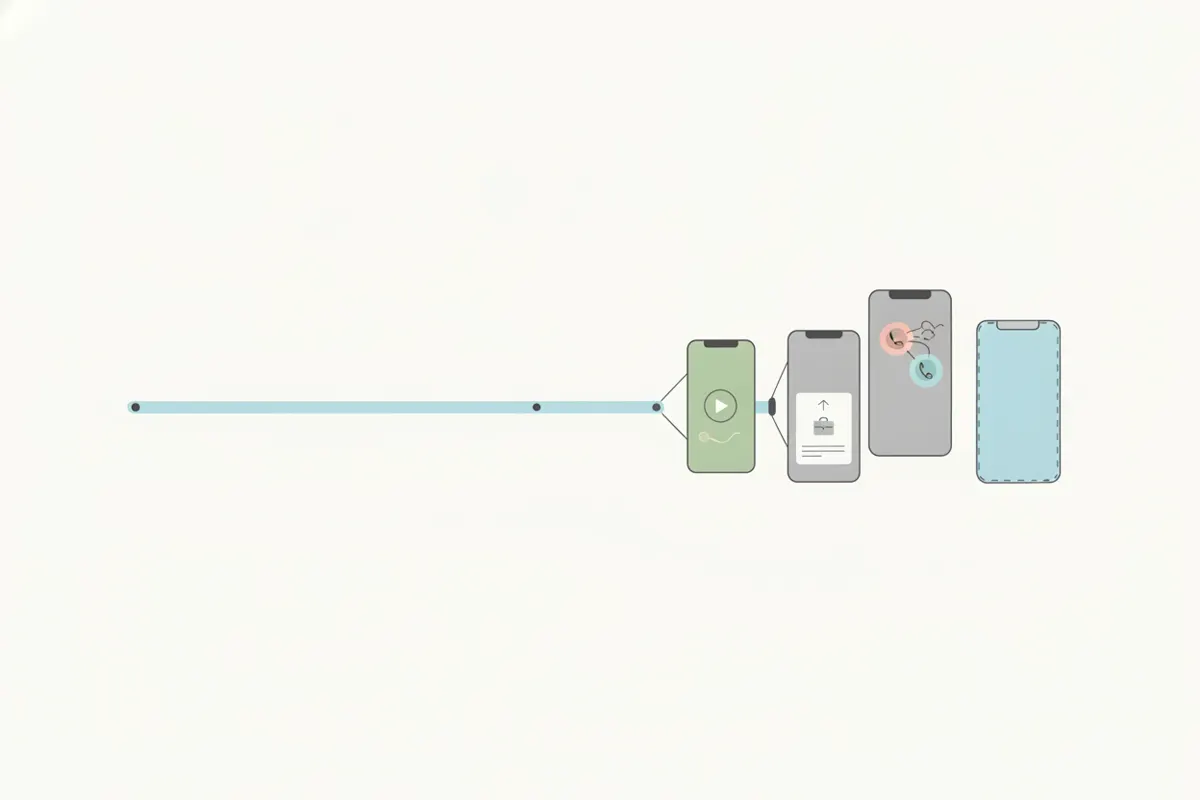
1. Record Your Discord Call or Stream
Discord does not provide a built-in way to clip or export calls and streams. To capture your content:
- Use OBS Studio (free) to record your screen, voice call, or stage event.
- If available, use Discord’s experimental clip feature for short moments.
- Export the recording as an MP4 file. Note: Discord’s upload limit is 20 MB, so for high-quality clips, plan to post directly to LinkedIn or other social platforms.
2. Prepare Your Recording for LinkedIn
LinkedIn accepts video in a wide range of aspect ratios (vertical 9:16, 4:5, square, and landscape all work), with a maximum length of 15 minutes. For best results with short clips, use vertical 9:16 (1080x1920) or 4:5 (1080x1350).
- Keep clips concise and engaging - LinkedIn viewers prefer direct, value-packed moments.
- Auto captions can be toggled on during upload, but adding captions beforehand ensures accuracy and immediate accessibility.
3. Use Vidulk’s AI Clipper to Create LinkedIn-Ready Clips
Vidulk’s free AI clipper app (iOS and Android) automates the process:
- Open the Vidulk app and upload your Discord recording.
- The AI analyzes your video and selects the best moments for short clips.
- Export your clips in vertical (9:16) or 4:5 format, ready for LinkedIn’s supported aspect ratios.
- Vidulk adds captions to your clips, making them accessible and engaging for LinkedIn’s feed.
4. Upload to LinkedIn
On LinkedIn, start a post, choose your clipped video, and enable auto captions if desired. LinkedIn may take time to process captions, so pre-captioned clips from Vidulk can help your content stand out immediately.
- Review LinkedIn’s video preview before posting to confirm sizing and captions display correctly.
Vidulk's AI clipper (free to start, iOS + Android) finds the best moments in a long video and exports captioned vertical clips sized for the destination.
Try VidulkFAQ
How do I record a Discord call or stream for LinkedIn?
Use OBS Studio to record your Discord call or stream. Save the recording as an MP4 file, then use Vidulk to create shareable clips.
What video size and aspect ratio does LinkedIn accept?
LinkedIn allows video from 1:2.4 to 2.4:1 aspect ratio. Vertical (9:16), 4:5, square, and landscape all work. Aim for 1080x1920 or 1080x1350 for vertical clips.
How does Vidulk help with LinkedIn clips?
Vidulk’s AI clipper finds the best moments in your Discord recording and exports short, captioned, vertical clips sized for LinkedIn.
Can I add captions to my LinkedIn video clips?
Yes. LinkedIn offers auto captions, but Vidulk can add captions directly to your clips for immediate accessibility and accuracy.
Is Vidulk free to use for Discord to LinkedIn clips?
Vidulk is free to start and available on iOS and Android. You can use it to create and export LinkedIn-ready clips from your Discord recordings.