
How to Turn Discord Calls or Streams into Facebook Reels Clips
To create Facebook Reels from a Discord call or stream, record your session, then use Vidulk’s AI clipper to generate short, vertical, captioned clips sized for Reels. Here’s how to do it efficiently and accurately.
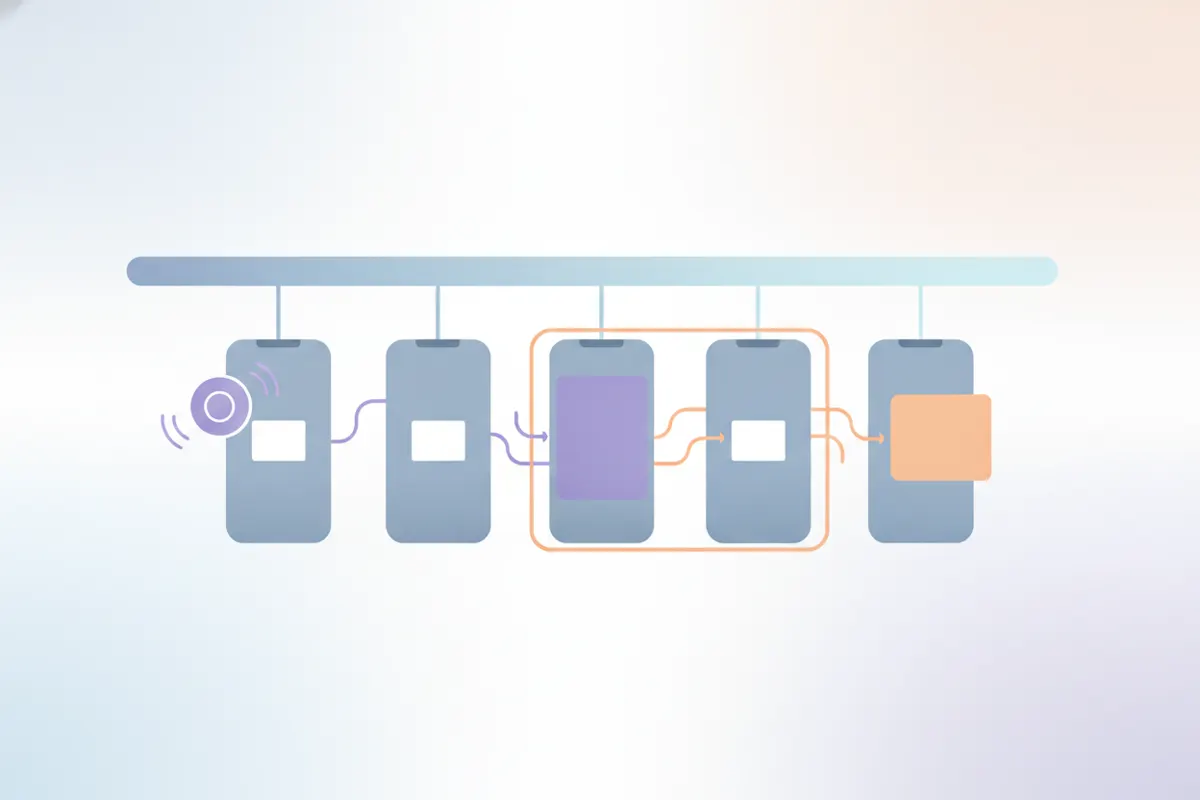
1. Record Your Discord Call or Stream
Discord doesn’t offer built-in tools for clipping calls or streams. To capture your content, use screen recording software like OBS Studio or, where available, Discord’s own clip feature. Make sure to record at the highest possible resolution for better quality clips. Note that Discord’s upload cap is 20 MB, so record locally and plan to share your clips on social platforms instead of uploading them back to Discord.
2. Prepare Your Recording for Facebook Reels
- Facebook Reels accepts any length or format since June 2025, but vertical (9:16) is recommended for a full-screen experience.
- Optimal resolution is 1440x2560 (recommended by Meta) or 1080x1920 pixels.
- Landscape or square videos are accepted, but vertical looks best on mobile.
Edit your recording if needed to trim out unwanted sections before uploading to a clipper tool.
3. Use Vidulk’s AI Clipper to Automate Vertical Clips
Vidulk (iOS and Android) streamlines the process of turning long Discord recordings into short, shareable Facebook Reels clips. Upload your recording to Vidulk’s AI clipper: it automatically finds highlight moments and exports vertical (9:16) clips, sized to Facebook Reels’ recommended specs. Vidulk also adds captions to your clips, which are recommended for accessibility and engagement - especially since Facebook Reels ads do not support auto-captioning.
4. Export and Upload to Facebook Reels
- Export your finished clips from Vidulk in vertical format with captions.
- Upload the MP4 files directly to Facebook Reels via the Facebook app or web.
- Double-check that the video displays correctly in 9:16 format and that captions are visible.
Since Facebook Reels now accepts all formats but prioritizes vertical, using Vidulk ensures your clips look their best and meet current platform specs.
Vidulk's AI clipper (free to start, iOS + Android) finds the best moments in a long video and exports captioned vertical clips sized for the destination.
Try VidulkFAQ
How do I record a Discord call or stream for Facebook Reels?
Use screen recording software like OBS Studio or Discord’s clip feature (if available) to capture your call or stream. Save the recording locally for editing.
What is the best aspect ratio and resolution for Facebook Reels clips?
Facebook Reels recommends a 9:16 aspect ratio (vertical), with 1440x2560 or 1080x1920 resolution for optimal quality.
Does Vidulk automatically add captions to Discord clips for Facebook Reels?
Yes, Vidulk’s AI clipper adds captions to your vertical clips, which is recommended since Facebook Reels ads do not auto-caption.
Can I upload landscape Discord recordings to Facebook Reels?
Yes, Facebook Reels accepts any format since June 2025, but vertical (9:16) clips look best and fill the screen on mobile devices.
Is it possible to automate the creation of short, vertical clips from long Discord recordings?
Yes, Vidulk’s AI clipper automates highlight detection and creates short, captioned vertical clips ready for Facebook Reels.