
How to Turn Zoom Recordings Into Instagram Reels Clips
To post highlights from a Zoom recording on Instagram Reels, you’ll need to crop, resize, and caption your video to fit Reels specs. Vidulk streamlines this process with AI-powered clipping and formatting.
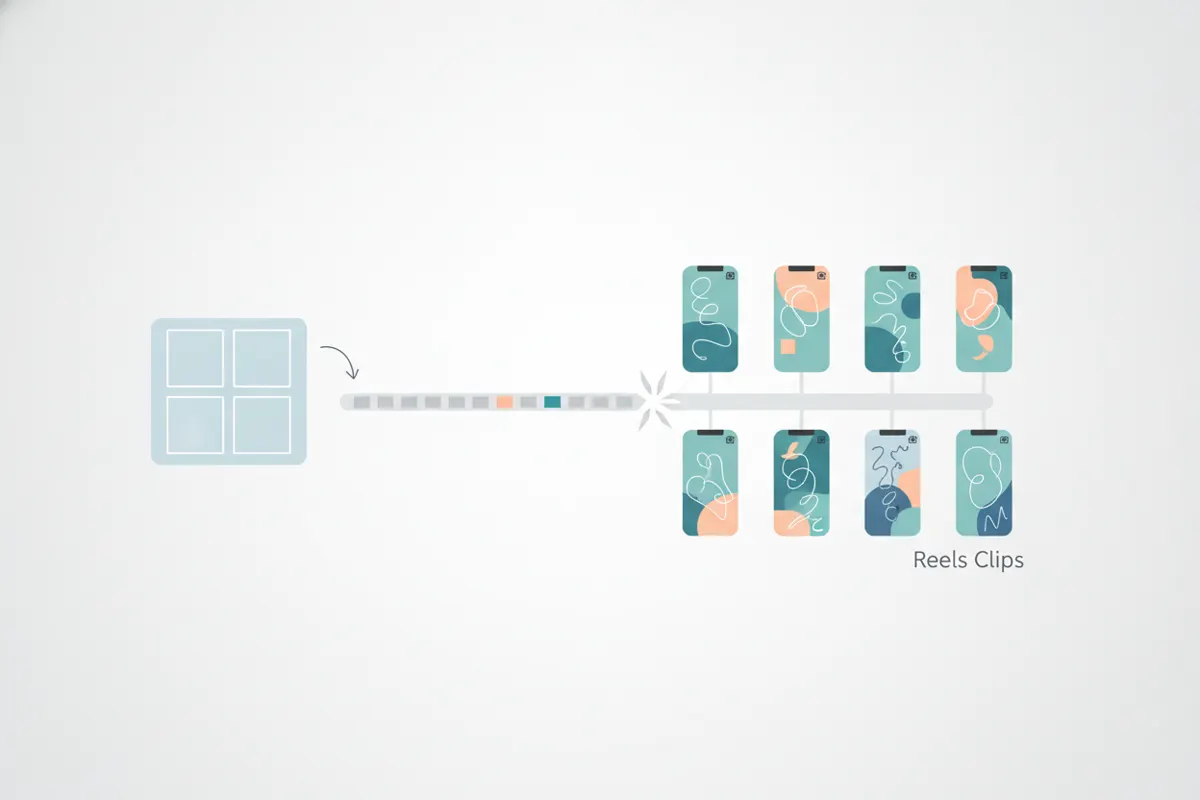
Step 1: Export Your Zoom Recording
After your Zoom meeting, webinar, or interview, download the recording from Zoom (cloud or local). Use the "Speaker View" export for a clear view of the active speaker - this is usually in 16:9 horizontal format.
Step 2: Get Consent Before Sharing
Before posting any clips from a Zoom recording, always obtain consent from all participants who appear in the video. This is essential for privacy and compliance.
Step 3: Convert to Vertical and Crop for Reels
- Instagram Reels works best with a 9:16 vertical aspect ratio (1080x1920 pixels standard, up to 1440x2560 for ads).
- Crop your 16:9 Zoom recording to focus on the speaker. Manual editors can do this, but it’s tedious.
Step 4: Use Vidulk to Automate Clipping and Formatting
- Open the Vidulk app (iOS or Android).
- Paste your Zoom recording link or upload the video file.
- Vidulk’s AI finds engaging moments, crops to vertical, and exports clips sized for Instagram Reels.
- Clips are auto-captioned for accessibility. You can review and edit captions before posting.
Step 5: Upload to Instagram Reels
- Instagram Reels allows videos up to 20 minutes (recorded in-app as of August 2026), but shorter clips (15 - 60 seconds) tend to perform better.
- Upload your vertical, captioned clips directly from your phone.
- You can also use Instagram’s built-in Captions sticker for additional captioning if needed.
Vidulk's AI clipper (free to start, iOS + Android) finds the best moments in a long video and exports captioned vertical clips sized for the destination.
Try VidulkFAQ
How do I crop a Zoom recording to vertical for Instagram Reels?
You can use editing software or Vidulk’s AI clipper, which automatically crops speaker view to a 9:16 format for Reels.
What is the best length for Instagram Reels clips from Zoom?
While Reels allows up to 20 minutes, clips between 15 and 60 seconds usually perform best for engagement.
Can I add captions to my Zoom-to-Reels clips?
Yes. Vidulk auto-generates captions, and you can also use Instagram’s Captions sticker in the Reels editor.
Are there any privacy concerns with posting Zoom recordings?
Yes. Always get explicit consent from everyone featured in the Zoom recording before sharing clips publicly.
Do I need to pay to use Vidulk’s AI clipper?
Vidulk is free to start, with AI-powered clipping and formatting available in the iOS and Android app.