
How to Turn Microsoft Teams Recordings into YouTube Shorts Clips
You can convert a Microsoft Teams meeting or webinar recording into short, vertical YouTube Shorts clips using Vidulk’s AI Clipper app. Here’s a step-by-step guide to automate the process and meet Shorts requirements.
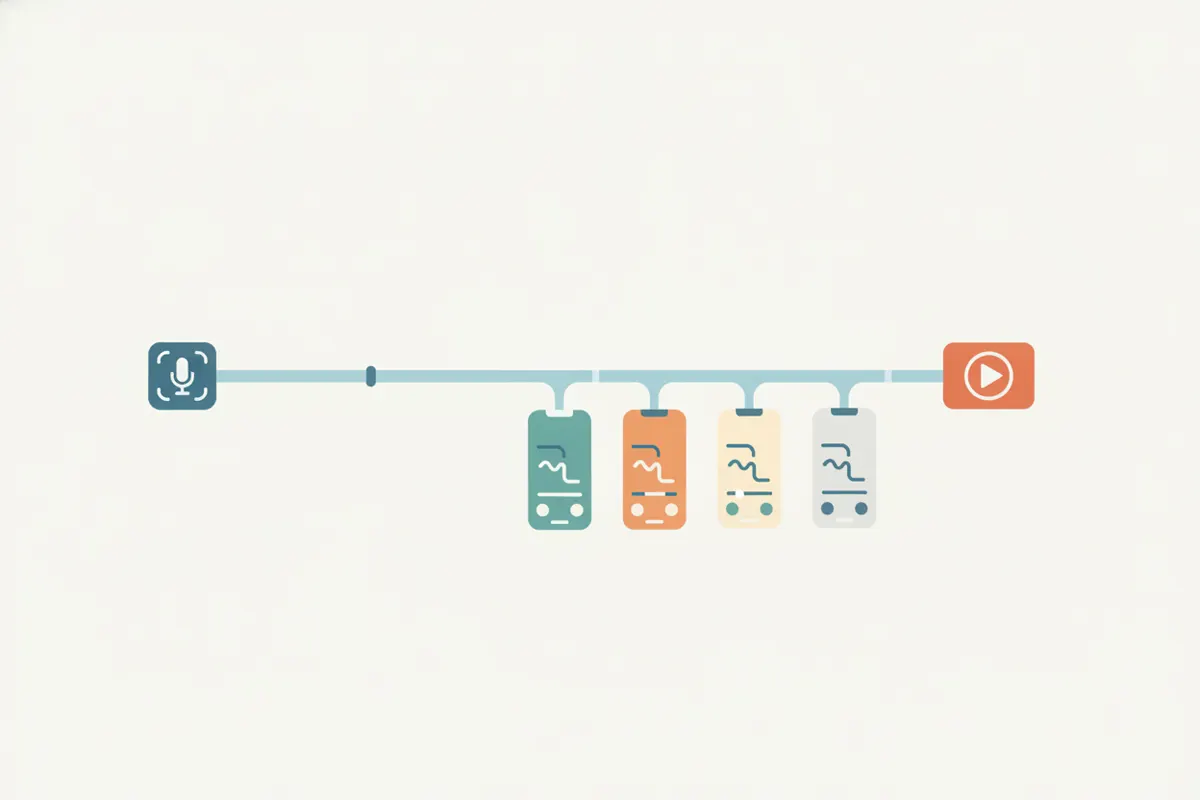
1. Export Your Microsoft Teams Recording
After your Teams meeting or webinar, the recording is typically saved to OneDrive or SharePoint in a 16:9 landscape format. Download the MP4 file from your organization’s storage. Ensure all participants have given consent to be recorded and shared, as required by your company or local regulations.
2. Understand YouTube Shorts Requirements
- Length: Up to 3 minutes
- Aspect Ratio: Vertical (9:16) or square (1:1) only
- Resolution: 1080x1920 pixels for vertical
- Captions: YouTube auto-generates captions, but you can upload videos with burned-in captions for better accuracy
- Any video uploaded after 15 Oct 2024 must meet these specs to be classified as a Short
3. Use Vidulk’s AI Clipper to Automate the Process
- Download the Teams recording MP4 to your device
- Open Vidulk on iOS or Android
- Upload or paste your Teams video
- The AI Clipper scans your video, finds key moments, and automatically crops to the speaker
- Vidulk exports vertical (9:16) clips with burned-in captions, sized for YouTube Shorts
4. Upload to YouTube Shorts
Transfer your exported clips to your computer or upload directly from your phone. In the YouTube app or Studio, upload your vertical video. YouTube will classify it as a Short if it’s under 3 minutes and in the correct aspect ratio. You can edit or review auto-generated captions in YouTube Studio if needed.
5. Tips for Better Shorts from Teams Recordings
- Keep clips focused on one speaker or topic for maximum engagement
- Review captions for accuracy before uploading
- Use Vidulk’s cropping and captioning to highlight key moments and ensure compliance with Shorts specs
Vidulk's AI clipper (free to start, iOS + Android) finds the best moments in a long video and exports captioned vertical clips sized for the destination.
Try VidulkFAQ
Can I turn any Teams meeting recording into a YouTube Short?
Yes, as long as you have download access, participant consent, and the video is edited to meet Shorts specs (vertical, under 3 minutes).
Does Vidulk crop the Teams recording to vertical for me?
Yes, Vidulk’s AI Clipper automatically crops the video to vertical (9:16) and centers on the speaker for Shorts.
Are captions included in the exported Shorts clips?
Vidulk adds burned-in captions to your exported clips. YouTube can also auto-generate captions for uploads in supported languages.
Is Vidulk free to use for creating Shorts from Teams recordings?
Vidulk is free to start with AI clipping, vertical cropping, and captioning features available in its iOS and Android apps.
What file format do I need from Teams to use Vidulk?
Download your Teams meeting recording as an MP4 file from OneDrive or SharePoint before uploading to Vidulk.