
How to Turn Discord Calls or Streams Into Instagram Reels Clips
To turn a Discord call or stream into Instagram Reels clips, record your session, convert it to vertical format, add captions, and export to the right specs. Vidulk's AI clipper automates this workflow.
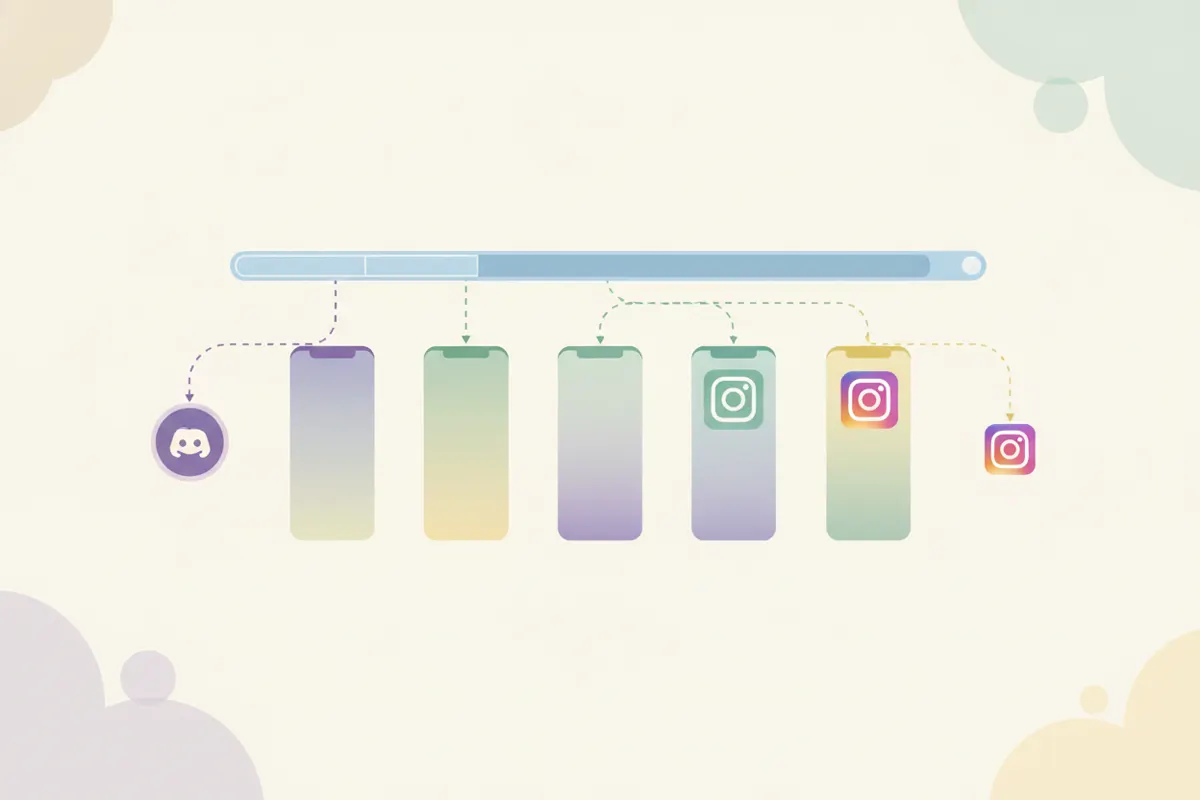
1. Recording Your Discord Call or Stream
Discord itself does not offer built-in tools to clip or record calls and streams. To capture your audio or video, use OBS Studio (free, cross-platform) to record the call, stage, or screen-share. Some Discord servers may have the clip feature enabled, but it is not widely available. Make sure to save your recording in a high-resolution format for the best results.
2. Instagram Reels Specs (2026)
- Length: Up to 20 minutes when recorded in the Instagram Reels camera (as of Nov 2025 update); up to 3 minutes for uploads (since Jan 2025).
- Aspect Ratio: 9:16 vertical is recommended (1080x1920 pixels standard; Meta recommends 1440x2560 for ads).
- Captions: Instagram offers auto-generated captions via the Captions sticker in the Reels editor.
3. Converting and Clipping With Vidulk
Vidulk's AI clipper app (iOS & Android) streamlines the process. Upload your Discord call or stream recording to Vidulk. The app uses AI to automatically find the best highlights, convert them to 9:16 vertical format, and add captions. You can export your clips in Instagram Reels-ready specs, saving time compared to manual editing.
4. Posting Your Clips
- Transfer the exported vertical clips to your phone if needed.
- Upload to Instagram Reels, trimming if your clip exceeds the upload limit.
- Use Instagram's built-in Captions sticker if you want to adjust or add captions in-app.
Note: Discord's free upload cap is 20 MB, so posting high-quality clips is best done directly to social platforms like Instagram rather than back into Discord.
Vidulk's AI clipper (free to start, iOS + Android) finds the best moments in a long video and exports captioned vertical clips sized for the destination.
Try VidulkFAQ
How do I record a Discord call or stream for Instagram Reels?
Use OBS Studio to record your Discord session. Save the file, then edit or upload it to a clipping tool like Vidulk for vertical conversion and highlights.
What are the required specs for Instagram Reels clips?
Reels should be 9:16 vertical, 1080x1920 or 1440x2560 pixels, and up to 20 minutes if recorded in-app (3 minutes for uploads as of 2026).
Can Vidulk automatically create Instagram Reels clips from Discord recordings?
Yes. Vidulk's AI clipper finds highlights in your Discord recording, converts them to a vertical format, adds captions, and exports clips sized for Instagram Reels.
Does Discord have a built-in clipper for calls?
No. Discord does not have a built-in clipper for calls. Use external recording tools like OBS Studio to capture your sessions.
How do I add captions to Discord clips for Reels?
Vidulk's AI clipper adds captions automatically. You can also use Instagram's Captions sticker when editing your Reel in the app.