
How to Add Captions to a Video: A Practical Guide
Adding captions to your videos increases accessibility and keeps viewers engaged, especially since most short-form videos are watched on mute. Here’s a clear, step-by-step guide to captioning your content effectively.
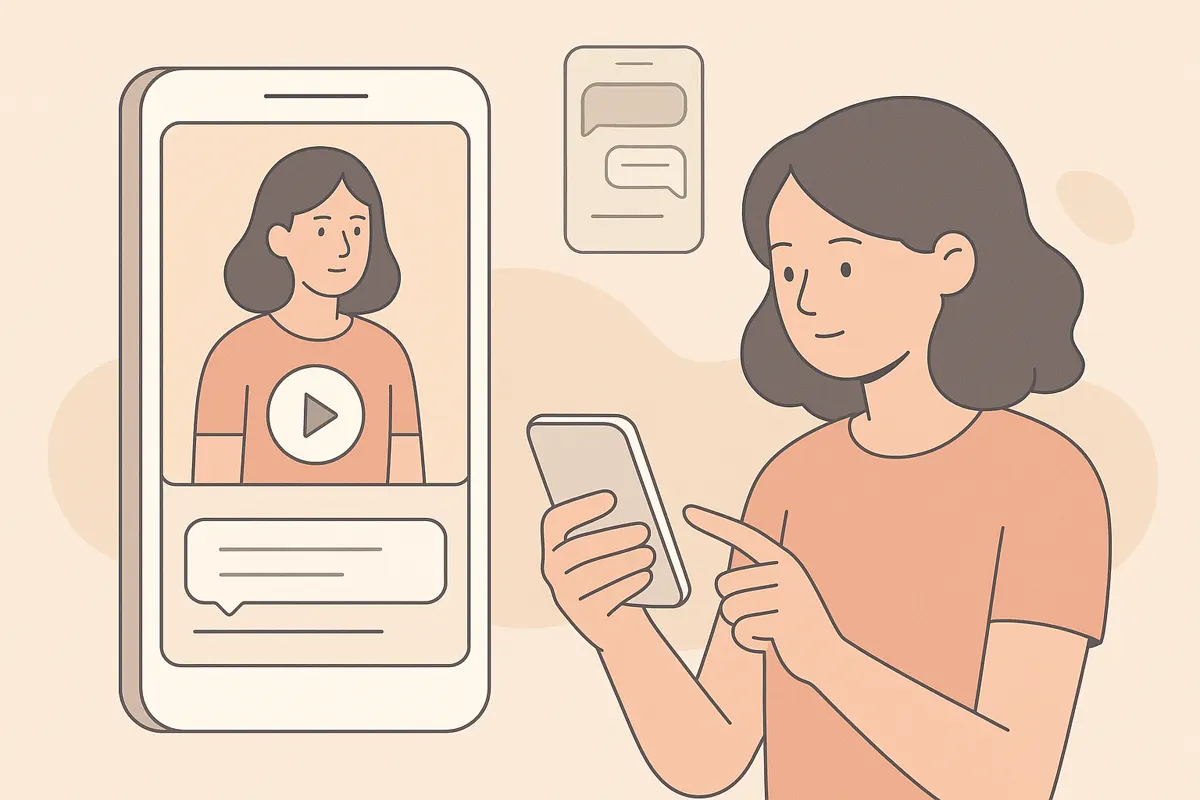
Why Captions Matter for Short-Form Video
Captions help your videos reach more viewers by making content accessible to those watching without sound or with hearing impairments. Platforms like TikTok, YouTube Shorts, and Instagram Reels favor videos that keep users engaged, and captions do exactly that by making your message clear even when the audio is off.
Manual vs. Automatic Captioning
You can add captions manually by transcribing your audio and syncing text to the video, but this is time-consuming and prone to errors. Automatic captioning tools, powered by AI, can transcribe and time captions for you. These tools generate captions that are synced to your audio, saving you significant effort.
How to Add Captions Automatically with Vidulk
- Go to Vidulk and paste the link to your long video, podcast, interview, or livestream.
- Let Vidulk’s AI find the best moments and generate short, vertical clips optimized for social media.
- Vidulk automatically adds bold, word-by-word or phrase captions, centered and easy to read, synced to your audio.
- Preview your clips and download them when ready. The captions are built in and ready for TikTok, YouTube Shorts, or Reels.
Best Practices for Captioned Videos
- Keep captions large, bold, and centered so they’re visible on mobile screens.
- Use word-by-word or short phrase breakdowns for easier reading and better sync with the audio.
- Review auto-generated captions for accuracy and make quick edits if needed.
- Ensure color contrast between captions and background for readability.
Exporting and Sharing Your Captioned Video
Once your video is captioned and edited, export it in a vertical format (9:16 aspect ratio) for short-form platforms. Upload directly to TikTok, YouTube Shorts, or Instagram Reels to maximize reach and engagement with your newly captioned content.
Do it in minutes - Vidulk turns a long video into ready-to-post captioned clips, free to start.
Try VidulkFAQ
Why should I add captions to my videos?
Captions increase accessibility and viewer engagement, especially since most short-form videos are watched on mute.
How does Vidulk add captions to my clips?
Vidulk’s AI automatically transcribes your audio and adds bold, timed captions to your short-form clips.
Can I edit the captions after they are generated?
Yes, you can review and quickly edit auto-generated captions to correct any errors before exporting your video.
What video formats does Vidulk support for captioning?
Vidulk works with long-form videos, podcasts, interviews, lectures, and livestreams, turning them into short, captioned clips.
Are the captions suitable for TikTok, YouTube Shorts, and Reels?
Yes, Vidulk produces vertical, captioned clips formatted specifically for these short-form video platforms.