
How to Turn Gameplay Recordings into YouTube Shorts Clips
To create YouTube Shorts from gameplay recordings, you need to crop, resize, and caption your footage into vertical clips that meet Shorts specs. Vidulk's AI clipper helps automate this workflow.
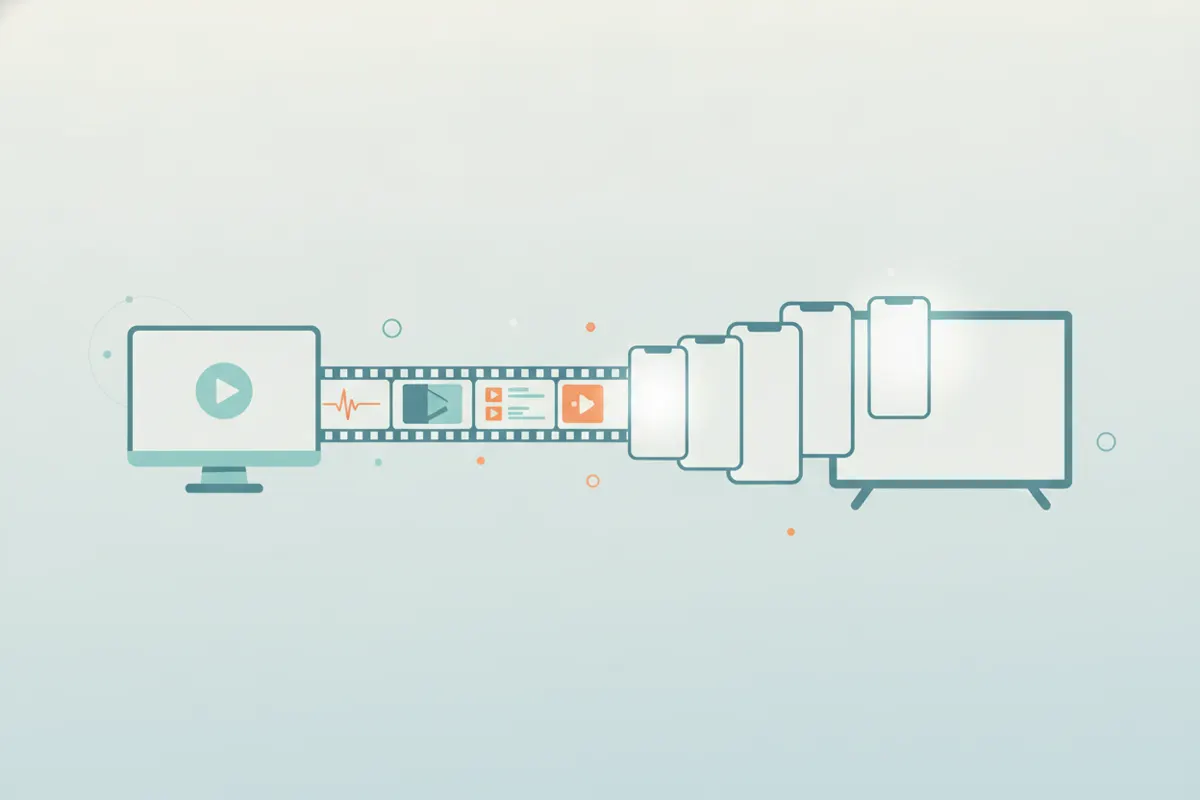
What YouTube Shorts Requires from Gameplay Clips
- Length: Up to 3 minutes (clips longer than 3 minutes won't count as Shorts).
- Aspect Ratio: Vertical (9:16) or square (1:1) only. Standard landscape (16:9) is not accepted for Shorts.
- Resolution: 1080x1920 pixels for 9:16 vertical.
- Captions: YouTube auto-generates captions, but you can add your own before upload for accuracy or style.
How to Prepare Your Gameplay Recording
- Record gameplay using Medal, Xbox/PlayStation capture, or your device's screen recorder.
- Include face-cam or live reactions for more engaging clips.
- Save the video in a high-quality format (MP4 preferred).
Turning Gameplay Recordings into Shorts-Ready Clips
Traditionally, you would edit your recording manually in software like CapCut or Premiere: trimming highlights, cropping to 9:16, and adding captions. This can be time-consuming, especially if you want to find the best moments or add context.
How Vidulk Automates the Process
- Open Vidulk on iOS or Android and paste your long gameplay video.
- The AI automatically finds clutch moments, funny fails, or reactions within the footage.
- Vidulk exports vertical (9:16) clips, sized and formatted for YouTube Shorts.
- Auto-captions are added to each clip, which you can edit or style as needed.
- Export your finished Shorts-ready video and upload directly to YouTube.
Tips for Better Shorts Clips
- Highlight moments with strong reactions or skillful plays.
- Keep clips under 60 seconds for maximum engagement, even though Shorts allows up to 3 minutes.
- Add context with captions or on-screen text for viewers who watch without sound.
- Preview your clip in vertical format to ensure key action is visible.
Vidulk's AI clipper (free to start, iOS + Android) finds the best moments in a long video and exports captioned vertical clips sized for the destination.
Try VidulkFAQ
How do I make my gameplay video count as a YouTube Short?
Edit your video to be vertical (9:16 or 1:1), under 3 minutes, and at least 1080x1920 resolution before uploading.
Can I use Vidulk to automatically find the best moments in my gameplay?
Yes, Vidulk's AI analyzes your gameplay and selects the most engaging highlights for Shorts clips.
Do I need to add captions before uploading to YouTube Shorts?
YouTube auto-generates captions, but adding your own in Vidulk ensures accuracy and can boost engagement.
Does Vidulk work with recordings from Medal, Xbox, or PlayStation?
Yes, export your gameplay video from those platforms, then import it into Vidulk for automatic clipping.
Is Vidulk available on desktop or only on mobile?
Vidulk's AI clipper is available as a mobile app for iOS and Android.